 MP3 Converter
MP3 Converter – Convert Audio & Video to MP3 Free Online
Our free MP3 Converter turns WAV, M4A, FLAC, MP4, MOV, MKV and many other files into clean MP3 audio in a few clicks. Upload a file, paste a media link or record your voice. No sign-up, and files you upload never leave your device.
- Private & Secure
- Unlimited File Conversions
- Free to Use
- Up to 320 kbps
Upload an audio or video file to convert to MP3.
Supported formats: WAV, M4A, AAC, FLAC, OGG, OPUS, WMA, MP4, MOV, WEBM, MKV, AVI and more, up to 500 MB per file
or drag and drop files here
Files are processed inside your browser and are never uploaded to a server.
Convert almost any format to MP3
One tool covers both audio and video. Choose a format below for a page with tips for that file type, or simply drop your file into the converter above.
What is an MP3 converter?
An MP3 converter, sometimes called an MP3 audio converter, is a tool that changes an audio or video file into the MP3 format. In other words, it takes a sound file that might be too big, too unusual or not supported by your device, and turns it into an MP3 that plays almost everywhere.
MP3 has been the most common audio format for more than two decades. Your phone, your car stereo, your laptop, smart speakers and nearly every music player can open it. That is exactly why people still convert files to MP3 today, even with so many newer formats around.
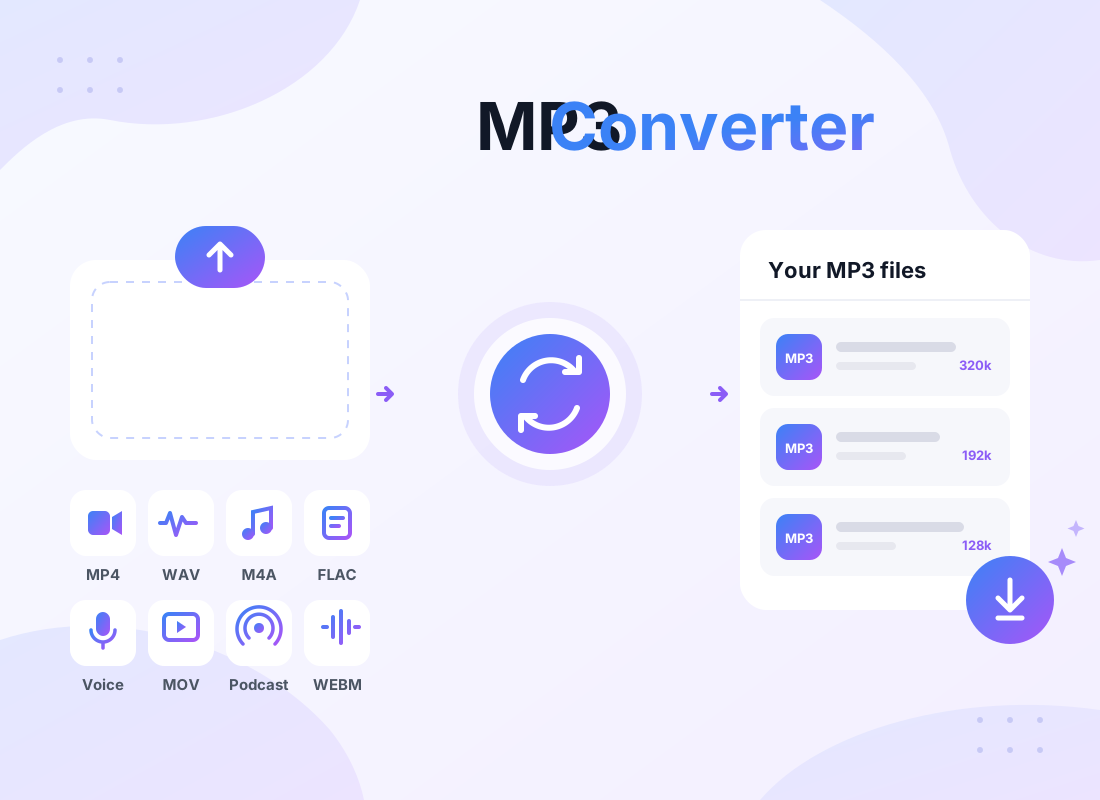
Our free online MP3 Converter works a little differently from most. Instead of sending your file to a remote server, it does the whole job inside your web browser. Because there is no upload and no waiting line, it is a genuinely fast MP3 converter for most files, and it is far more private, since your recordings never leave your device.
How to convert a file to MP3
You do not need any technical skills to use this MP3 converter. Here is the full process, and it usually takes less than a minute.
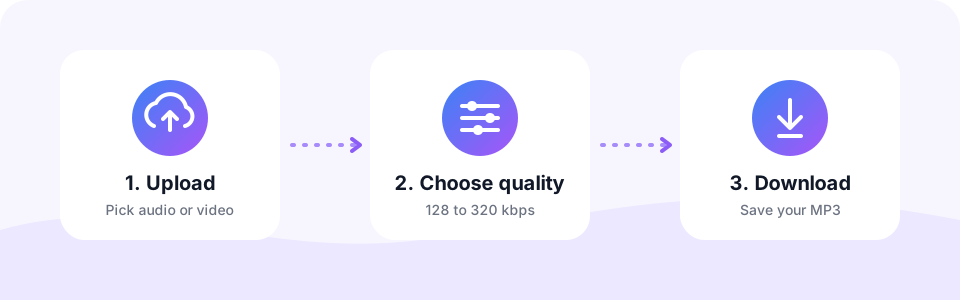
- Add your fileClick Choose Files or drag a file onto the converter. You can add one file or several at the same time, including audio and video.
- Pick the MP3 qualityLeave it on 192 kbps for everyday listening, or change it to suit your needs. Turn on Mono if the file is mostly speech.
- Wait a momentThe progress bar shows each step. First the tool reads the audio, then it encodes the MP3.
- Download your MP3Press Download next to the file. The new MP3 keeps the same name as the original, so it is easy to find later.
Need to capture audio first? Switch to the Record tab, speak into your microphone and press Stop & Convert. You will get a ready-to-share MP3 voice recording.
Using the MP3 converter on iPhone, Android and computer
Since everything runs in the browser, there is no app to install on any device. The steps differ only in where your files are saved.
- MP3 converter on iPhone and iPad. Open this page in Safari, tap Choose Files and pick a file from Photos or the Files app. After converting, tap Download; the MP3 appears in Files under Downloads, ready to share or add to a music app.
- Android phones and tablets. Use Chrome or any up-to-date browser. Finished MP3s are saved to the Downloads folder, where your music player and file manager can find them.
- Windows, Mac, Linux and Chromebook. Drag a whole folder of files onto the converter, then use Download all to save every MP3 in one go.
Why convert audio and video to MP3?
There are plenty of good reasons to keep an MP3 copy of your files. Below are the ones we hear about most often from people who use the tool.
- It plays everywhere. Some formats, such as FLAC, OPUS or WMA, will not open on every phone or car stereo. MP3, on the other hand, is supported almost universally.
- It saves storage space. A three-minute WAV song takes roughly 30 MB. The same song as a 192 kbps MP3 is about 4.3 MB, around seven times smaller.
- It is easy to share. Smaller files are quicker to send by email, WhatsApp or a cloud drive, and they upload faster to websites that only accept MP3.
- You only need the sound. If you want the audio from a lecture video, a family clip or a screen recording, a video to MP3 converter removes the picture and keeps just what you want to hear.
Choosing the right MP3 bitrate
Bitrate, measured in kilobits per second (kbps), controls how much data the MP3 uses for each second of sound. A higher bitrate keeps more detail, but it also makes the file bigger. The table below shows what to expect so you can find the right balance.
| Bitrate | Size per minute | Best for |
|---|---|---|
| 128 kbps | about 0.96 MB | Podcasts, audiobooks, lectures, voice memos |
| 192 kbps | about 1.44 MB | Everyday music listening on phones and earbuds |
| 256 kbps | about 1.92 MB | Music on good headphones or home speakers |
| 320 kbps | about 2.40 MB | Archiving music, DJ sets, the highest MP3 quality |
Practical tips for better results
- Start from the best source you have. Converting from WAV or FLAC gives a cleaner MP3 than converting from another compressed file.
- Do not “upscale” an MP3. Turning a 128 kbps MP3 into 320 kbps makes the file bigger, yet it cannot restore detail that was already removed.
- Use mono for speech. A single voice sounds the same in mono, and the whole bitrate goes to that one channel.
- Keep your originals. MP3 is a lossy format, so hold on to the source file in case you need a different quality later.
MP3 vs WAV vs AAC vs FLAC
Every audio format makes a trade-off between size, quality and compatibility. This quick comparison helps you decide when MP3 is the right choice and when another format might suit you better.
| Format | Type | File size | Compatibility |
|---|---|---|---|
| MP3 | Lossy | Small | Plays on almost every device and app |
| WAV | Uncompressed | Very large | Great for editing, too big for daily listening |
| AAC / M4A | Lossy | Small | Strong on Apple devices, weaker on older players |
| FLAC | Lossless | Large | Loved by audiophiles, not supported everywhere |
In short, choose MP3 when you want a file that is small and plays anywhere. Keep WAV or FLAC when you need a perfect master copy for editing or archiving.
Why people choose our free MP3 converter
We built this MP3 Converter to be simple for beginners, yet useful enough for people who work with sound every day.
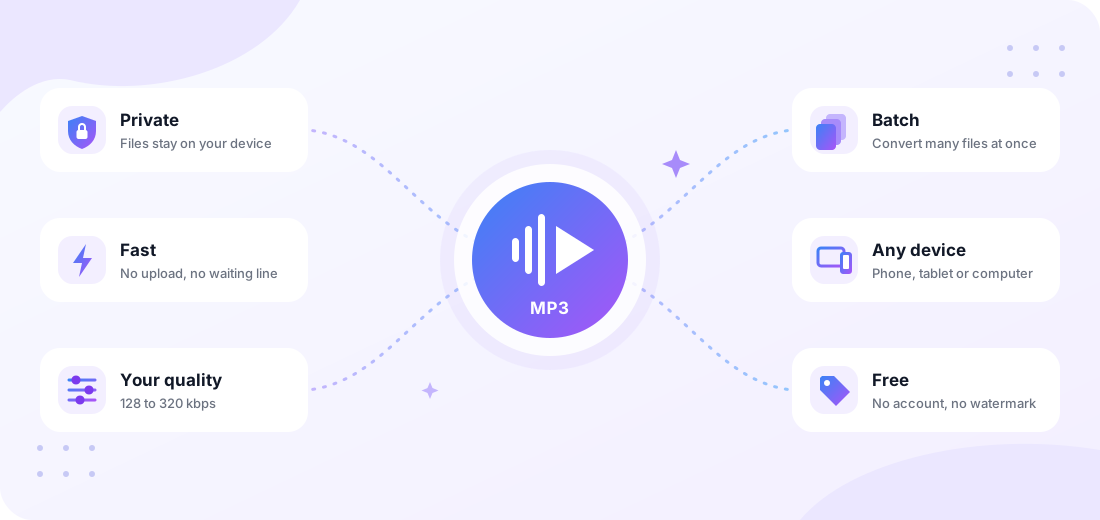
Private by design
The conversion happens on your own device. Your songs, lectures and voice notes never travel to our servers, so nobody else can see them.
Fast, with no waiting line
Because there is no upload step, short clips turn into MP3 in a few seconds. Longer files simply depend on the speed of your device.
You choose the quality
Pick 128, 192, 256 or 320 kbps. Go small for voice and podcasts, or go high for music you plan to keep.
Convert many files at once
Select a whole folder of clips. The tool lines them up and converts them one after another, so you can keep working.
Works on any device
Use it on Windows, Mac, Linux, Android, iPhone or a Chromebook. A modern browser is all you need, with no app to install.
Free, with no account
There is no sign-up, no email and no watermark. Open the page, drop your file and download the MP3.
What can you do with an MP3 converter?
Study on the go
Turn recorded lectures or online class videos into MP3 and listen during your commute or workout.
Publish podcasts
Export your episode as a lightweight MP3 that podcast hosts and listening apps accept without trouble.
Share voice notes
Convert iPhone M4A memos or WhatsApp OPUS notes into MP3 so anyone can open them.
Build a music library
Make portable MP3 copies of your own WAV or FLAC albums for your phone, laptop and car.
Fill your MP3 player
Use it as an MP3 player converter: turn WMA, FLAC, M4A or OGG files that an older MP3 player or car stereo refuses to play into standard MP3s it can read.
Make ringtones and clips
Convert a song to MP3, then keep just the chorus with our MP3 Cutter.
Is this online MP3 converter safe?
Yes. This MP3 Converter was built to be private from the start, and here is how it works behind the scenes, so you do not have to take our word for it. When you add a file, your browser uses its built-in Web Audio engine to read the sound. For formats the browser cannot open, such as MKV, AVI or WMA, the page loads FFmpeg, a trusted open-source media library, compiled to run inside your browser. Then the well-known LAME encoder compresses the sound into an MP3. Finally, your browser hands the finished file straight back to you.
- Files you upload never leave your device. Videos fetched from a link are deleted from our server after 30 minutes.
- No software to install, so there is no risk of bundled adware.
- No account, which means no personal data to protect or leak.
- Close the tab, and every converted file in memory is cleared.
Please convert responsibly. Use the tool for your own recordings, files you have bought or files you have permission to use. Copying protected music or films without permission may break copyright law in your country.
Frequently asked questions
Is this MP3 converter really free?
Yes. You can convert as many files as you like without paying, signing up or sharing an email address. The conversion runs on your own device, so it costs us very little to keep the tool free.
Are my files uploaded to your server?
Files you upload are never sent to us. Your browser reads the file, decodes the audio and builds the MP3 right on your device. Only when you paste a link does our server fetch that video for you, and the result is deleted after 30 minutes.
Can I convert a video to MP3?
Yes. Pick an MP4, MOV, WEBM or other video file and the converter pulls out only the sound track and saves it as an MP3. The picture is dropped, so the new file is much smaller than the video.
Which bitrate should I choose?
For speech, such as podcasts, lectures or voice memos, 128 kbps is plenty, and mono keeps a single voice clear. For music, 192 kbps sounds good to most people, while 256 or 320 kbps is the better choice for songs you want to keep long term.
Will converting to MP3 lower the audio quality?
MP3 is a lossy format, so it removes some detail that most people cannot hear. If you start from a lossless file such as WAV or FLAC and choose 256 or 320 kbps, the result sounds almost the same as the original. However, converting an existing MP3 to a higher bitrate will not bring back lost quality.
Is there a file size limit?
You can convert files up to 500 MB. Since the work happens on your device, very long recordings need free memory. If a large file fails on a phone, try it on a computer or split it into parts first.
Does the MP3 converter work on iPhone and Android?
Yes. It works as an MP3 converter on iPhone, iPad and Android with no app to install. Open the site in Safari, Chrome or another up-to-date browser, tap Choose Files and pick a file from your phone. When it finishes, tap Download to save the MP3 to your Files app or downloads folder.
Why did my file fail to convert?
The converter first uses your browser’s own decoder. If that cannot read the file, it loads a built-in FFmpeg decoder that handles almost every format. A file will usually only fail if it has no sound track (for example a silent screen recording), is copy protected (DRM) or is damaged.
Is it legal to convert files to MP3?
Converting files you own, or files you have permission to use, is generally fine for personal use. Please do not use the tool to copy music, films or other content that is protected by copyright without the owner’s permission.
About this page
We build simple, privacy-first audio tools. Every tip on this page is checked against how the converter actually behaves, and we update this guide whenever the tool changes. Learn more about us.
Last updated: October 2026
Ready to convert your file to MP3?
It is free, private and takes only a few seconds. Scroll back up, drop in your file and get your MP3.
Convert to MP3 Now