 MP3 Converter
Transcribe Audio to Text – Free Online Transcriber
Turn interviews, voice notes, lectures and meetings into editable text in minutes. Our free audio transcriber runs a speech recognition model inside your browser, detects the spoken language and gives you a clean transcript with timestamps. Your recording never leaves your device.
- 100% Private
- No Limits
- Free
- Any Device
Upload an audio or video file to transcribe.
Works with MP3, WAV, M4A, OGG, FLAC, MP4, MOV, WEBM and more, up to 500 MB
or drag and drop a file here
For Spanish, Portuguese and other languages, choose Best for the most accurate text.
Files are processed inside your browser and are never uploaded to a server.
A free transcriber that turns speech into text on your device
When you need to transcribe audio to text, typing it out by hand takes around four times as long as the recording itself. An automatic transcriber does the listening for you. Drop in a file, press Transcribe to Text, and the words appear as a transcript you can edit, copy into a document or save as subtitles.
Most transcription services upload your audio to their servers and charge by the minute. This one works differently. It uses Whisper, an open-source speech recognition model created by OpenAI, and runs it right in your browser. As a result, the transcription is free, there is no account, and a confidential interview or a personal voice memo stays on your computer or phone.
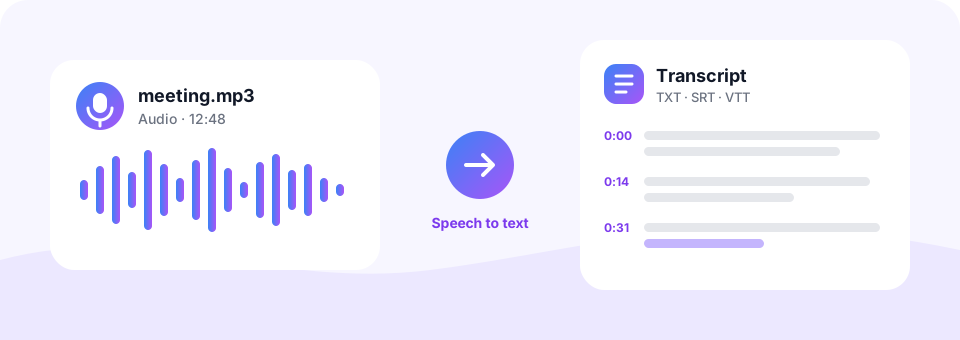
How to use the Audio to Text Transcriber
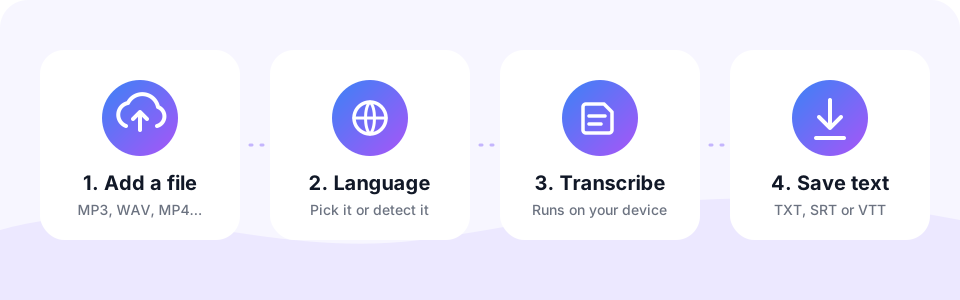
- Choose your audio or video fileTap Choose File or drag a file onto the box. MP3, WAV, M4A, OGG, FLAC, AAC and the sound of MP4, MOV or WEBM videos all work, up to 500 MB.
- Pick the spoken languageLeave Spoken language on Detect automatically, or choose it yourself, for example Spanish or Portuguese. Choosing it helps with short clips and strong accents.
- Choose the accuracyBalanced suits clear English recordings. Best gives the most accurate text for other languages and harder audio, while Fast is the quickest on a phone.
- Transcribe, then copy or downloadPress Transcribe to Text and watch the live preview. When it is done, edit the text if needed, then copy it or download a TXT, SRT or VTT file.
How the audio transcriber works
The first time you transcribe, your browser downloads the speech model you picked, between 41 MB and 249 MB, and keeps it in its cache. After that, the model loads from the cache in seconds. Your file is decoded on the page, converted to the 16 kHz mono sound the model expects, and then processed in 30-second windows that overlap slightly, so no words are lost between them.
Each window becomes a few lines of text with start and end times. The tool then joins them into paragraphs, starting a new one when the speaker pauses. Because everything happens on your device, the speed depends on your computer or phone. A modern laptop is the fastest option, and long recordings simply take a little longer.
- Fast (41 MB). The smallest model. Good for clear English speech and for phones with little memory.
- Balanced (77 MB). The default. Accurate on clean recordings in English and other widely spoken languages.
- Best (249 MB). The most accurate choice for Spanish, Portuguese, French, German and other languages, and for noisy or fast speech.
Transcribe Spanish audio to text, and 25+ other languages
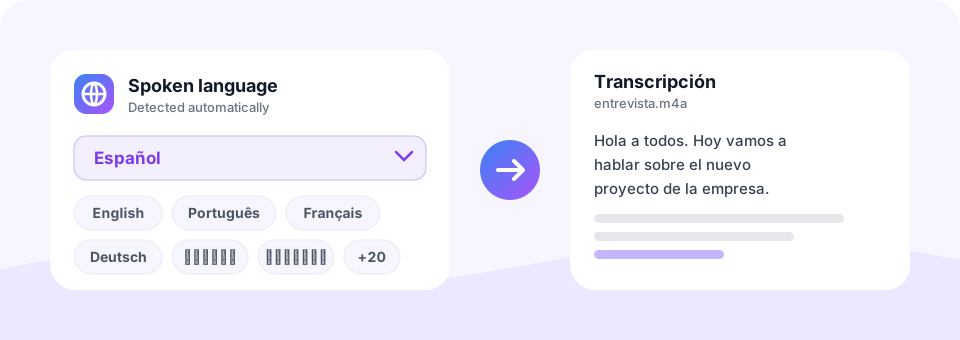
You can transcribe Spanish audio to text just as easily as English. The transcriber recognises English, Spanish, Portuguese, French, German, Italian, Russian, Turkish, Arabic, Hindi, Indonesian, Japanese, Chinese, Korean and many more. By default, it listens to the first 30 seconds and detects the language for you, then shows which one it found next to the transcript.
For the best results in Spanish or Portuguese, choose the language yourself and set Accuracy to Best. This matters most for short clips, mixed languages and regional accents, such as Latin American and European Spanish, or Brazilian and European Portuguese. The text is written in the language that is spoken, so a Spanish interview gives you a Spanish transcript.
Audio file transcription for every kind of recording
Audio file transcription is useful far beyond the office. Here are the recordings people turn into text most often.
- Interviews and research. Get a searchable transcript of a journalist interview, a user study or a podcast guest, ready to quote.
- Lectures and classes. Transcribe a recorded lecture into study notes you can search, highlight and summarise.
- Meetings and calls. Turn a Zoom, Teams or phone call recording into minutes, and keep a written record of decisions.
- Voice memos and ideas. Speak your notes on a walk and turn them into text later. You can record straight from your browser with our Voice Recorder.
- Videos and subtitles. Load an MP4, MOV or WEBM video and save SRT or VTT subtitles to add captions on YouTube or in your video editor.
- Podcasts. Publish show notes and a full transcript, which makes each episode easier to find in search engines.
Save your transcript as TXT, SRT or VTT
When the transcription is finished, the text appears in an editor. Fix a name or a technical term, then press Copy Text to paste it into Google Docs, Word or an email. You can also switch to the Timestamps view to see when each sentence was spoken.
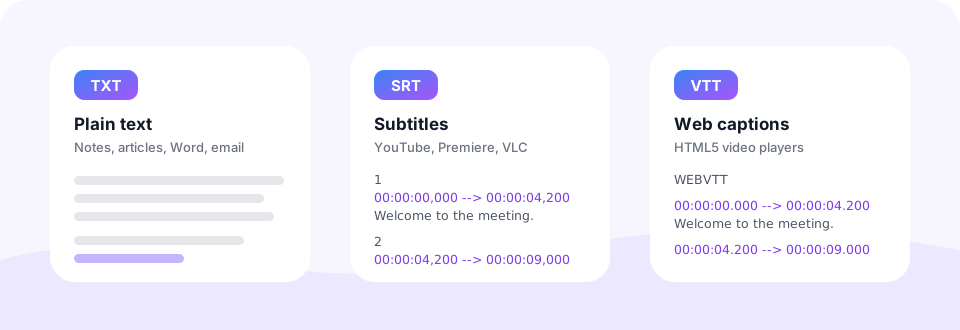
For files, choose TXT for plain text, SRT for subtitles in YouTube, Premiere Pro, DaVinci Resolve or VLC, and VTT for web video players. The subtitle files use the timestamps from the model, so each line appears on screen while it is being said.
Tips for a more accurate transcription
Speech recognition is good, but it is not perfect. It works best on clear speech, so a few small steps make a real difference.
- Record close to the microphone. A phone held near the speaker beats a laptop across the room. Less echo and background noise means fewer mistakes.
- Choose the language and Best accuracy. For anything other than clear English, these two settings give the biggest improvement.
- Cut out music and silence. Long intros, music or silence can confuse the model. Trim them first with the MP3 Cutter.
- Check names and numbers. Proper names, brands and figures are the most common errors, so read them over before you share the transcript.
- Split very long recordings. For recordings of several hours, cut them into parts. It keeps memory use low, especially on phones.
Private, free and without limits
There is no sign-up, no watermark and no monthly quota, so you can transcribe audio to text free as often as you like. Since the speech model runs locally, your audio is never sent to a server, and nobody else can listen to it. The only download is the model itself, which comes from Hugging Face, a public library of AI models.
This transcriber is part of MP3 Converter, a set of free audio tools that all work in your browser. If your recording is a video, you can also keep just the sound with our Video to MP3 converter.
Frequently asked questions
How do I transcribe audio to text for free?
Open this page, choose your audio or video file, leave the language on Detect automatically and press Transcribe to Text. The transcript appears on the page, ready to copy or download, at no cost and with no account.
Can I transcribe Spanish audio to text?
Yes. Spanish is fully supported, along with Portuguese, French, German and more than 20 other languages. For the best result, set Spoken language to Spanish and Accuracy to Best.
Is my audio uploaded to a server?
No. The speech recognition model runs inside your browser, so your file stays on your device. Only the model itself is downloaded once from Hugging Face.
Which file formats can I transcribe?
MP3, WAV, M4A, AAC, OGG, OPUS, FLAC, WMA and AMR audio, plus the sound track of MP4, MOV, WEBM and MKV videos, up to 500 MB per file.
How accurate is the transcription?
On clear speech it is very accurate, especially with the Best setting. Background noise, music, people talking over each other and strong accents lower the accuracy, so always check names and numbers.
How long does it take to transcribe a file?
It depends on your device and the accuracy you choose. On a modern computer, Fast and Balanced are usually quicker than the recording itself, while Best takes longer. The first run also includes the one-time model download.
Does the transcript include timestamps?
Yes. Switch to the Timestamps view to see when each sentence starts, or download an SRT or VTT file with start and end times for every line.
Can it tell different speakers apart?
Not yet. The transcript is written as continuous text in paragraphs, without speaker names. You can add names yourself in the editor before you download it.
Can I record my voice and transcribe it to text?
Yes. Open the Record tab, press Start Recording and speak. When you press Stop & Transcribe, the recording is turned into text right away, and it never leaves your device.
Does the audio transcriber work on iPhone and Android?
Yes, it works in modern mobile browsers. On phones, choose Fast or Balanced and transcribe shorter recordings, because the Best model needs more memory.
Related tools
We build free, privacy-first audio tools that run in your browser. This guide is checked against how the tool actually works. About us
Last updated: October 2026