 MP3 Converter
WEBM to MP3 & MP3 to WEBM Converter
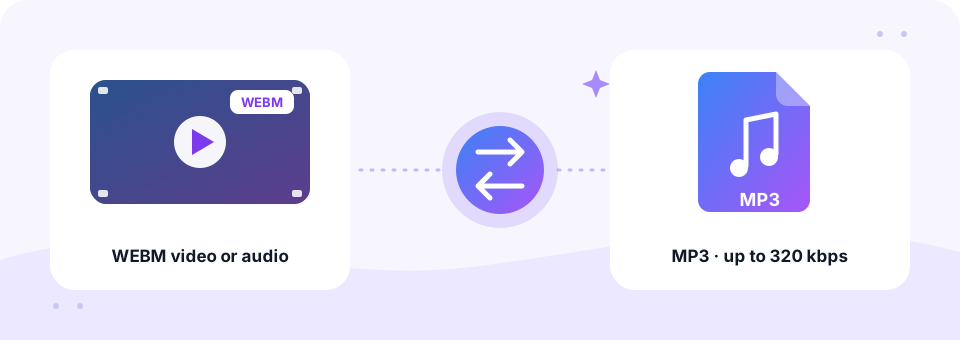
Our free WEBM to MP3 converter pulls the sound out of WEBM videos and audio files and saves it as a regular MP3. It is ideal for screen recordings, browser-recorded meetings and web clips, and it runs privately in your browser with no upload. Building a website? It also converts MP3 to WEBM.
- 100% Private
- No Limits
- Free
- Any Device
Upload WEBM files to convert to MP3.
Supported formats: WEBM, MKV, OGG and more, up to 500 MB per file
or drag and drop files here
Files are processed inside your browser and are never uploaded to a server.
What is a WEBM file?
WEBM is an open media format created for the web. It usually holds VP8, VP9 or AV1 video with Opus or Vorbis sound, and every modern browser plays it. Because of that, browser-based screen recorders, online voice recorders and many web meeting tools save their recordings as WEBM. You may also end up with a .webm file after saving a clip from a website.
Outside the browser, however, WEBM is less welcome. Many phones, car stereos, podcast hosts and audio editors cannot open it. So when you only need the narration of a tutorial or the soundtrack of a clip, converting WEBM to MP3 gives you a much smaller file that plays anywhere. And if a web project needs light audio-only WEBM files, the MP3 to WEBM tab creates them.
How to use the WEBM to MP3
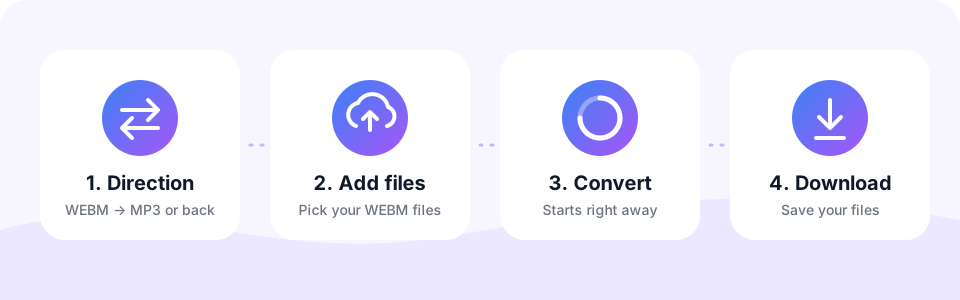
- Open the WEBM → MP3 tabIt is selected when the page loads. Tap MP3 → WEBM only if you want to create WEBM audio instead.
- Choose the MP3 quality192 kbps is the default. For narration and meetings, 128 kbps with Mono is plenty; for music, pick 256 or 320 kbps. Set this before adding files.
- Add the WEBM fileTap Choose WEBM Files or drag the recording onto the box. Video and audio-only WEBM files both work, and several files convert in turn.
- Download the MP3Listen in the built-in player, then tap Download. With more than one file finished, Download all saves the whole set.
Converting MP3 to WEBM
WEBM is the web’s own open media format. An audio-only WEBM file with Opus sound is small, streams well and plays in all modern browsers, which makes it a good choice for background audio, podcast players and sound effects on websites.
Choose MP3 → WEBM, pick a bitrate (96 to 128 kbps covers most uses) and convert. The result contains audio only, with no video track, so it stays light for your web pages.
WEBM video vs MP3 audio: how much space you save
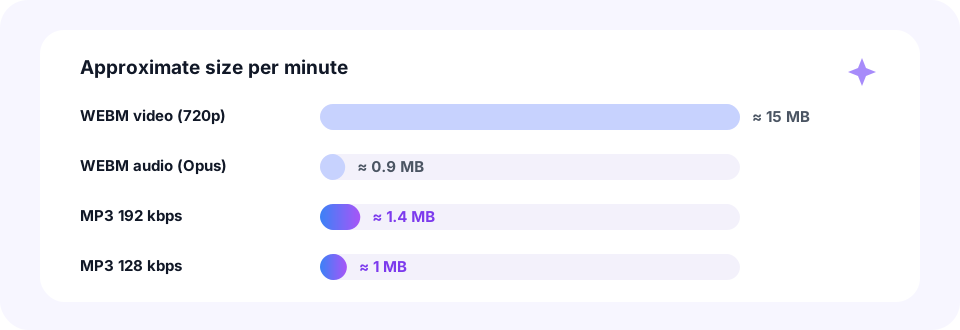
Video is by far the heaviest part of a WEBM file. A 720p recording often takes around 15 MB per minute, while the same minute as an MP3 is only 1 to 1.5 MB. As a result, an hour-long screen recording can shrink from close to a gigabyte to well under 100 MB once you keep only the sound.
- WEBM video (720p). Roughly 15 MB per minute, depending on the content and the recorder.
- MP3 192 kbps. About 1.4 MB per minute. A good default for most recordings.
- MP3 128 kbps. About 1 MB per minute. Perfect for talks, lessons and meetings.
Typical uses for WEBM to MP3
- Screen recording narration. Turn a recorded tutorial or demo into an audio lesson people can hear on the go.
- Browser-recorded meetings. Extract the conversation to share it, archive it or send it to a transcription service.
- Voice recordings from web apps. Online recorders often save audio-only WEBM files, and these convert exactly the same way.
- Clips for editing. Convert first, then keep just the best part with our MP3 Cutter.
What happens to the video track?
The converter reads only the audio inside your WEBM. The picture is ignored, so you get a clean MP3 with the full sound and nothing else. If the original audio is surround sound, it is mixed down to stereo, and every MP3 is saved at 44.1 kHz for the widest support.
Want to keep the picture as well? Then you do not need conversion at all; most browsers already play WEBM. For other video formats, our Video to MP3 page accepts MP4, AVI, WMV and more, while MKV to MP3 covers Matroska files, the format WEBM is based on.
WEBM to MP3 on iPhone, Android, Mac and Windows
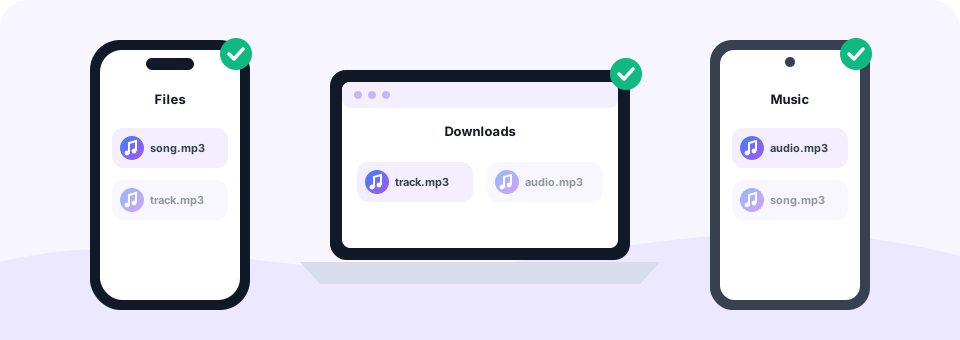
The tool runs in Chrome, Edge, Firefox and Safari, so you can convert WEBM to MP3 without installing software on Windows, macOS, Linux or a Chromebook. The finished MP3 is saved in your Downloads folder.
On Android, open the page in Chrome, tap Choose WEBM Files and pick the recording from Downloads or Movies. On an iPhone or iPad, open the page in Safari and choose the file from the Files app. If the browser cannot read the WEBM directly, the built-in FFmpeg decoder loads the first time and extracts the sound anyway. Long recordings convert faster on a computer than on a phone.
Troubleshooting WEBM files
If you see “We could not find any sound in this file”, the recording probably has no audio track. This often happens when a screen recorder was not allowed to capture the microphone or tab audio. Play the original WEBM to check whether you can hear anything.
Files over 500 MB are refused, so split very long recordings first or record in shorter parts. Damaged files, for example from a recording that was cut off when the browser closed, may also fail to convert.
Safe and private WEBM conversion
Screen recordings and meetings often contain private information. That is why this WEBM to MP3 converter does all its work inside your browser, using the Web Audio API, FFmpeg compiled to WebAssembly and the LAME MP3 encoder. Your files are never uploaded to a server.
Beyond privacy, MP3 Converter is free, needs no sign-up and adds no watermark. There are no apps or extensions to install, and there is no limit on how many files you convert.
Frequently asked questions
Is this WEBM to MP3 converter free?
Yes. It is completely free, with no sign-up, no limits on the number of files and no watermark.
Can I convert audio-only WEBM files?
Yes. WEBM files with or without video both convert to MP3 in the same way.
Why is my MP3 silent or why does the WEBM not convert?
The recording may not contain any audio. Play the original WEBM to check, and make sure the recorder was allowed to capture sound next time.
How do I convert a screen recording to MP3?
Tap Choose WEBM Files, select the recording, wait for the conversion to finish and tap Download. Only the sound is kept.
Is there a file size limit?
Yes. Each file can be up to 500 MB. Split longer recordings into parts before converting.
Are my WEBM files uploaded?
No. The conversion runs entirely in your browser, so your recordings stay on your device.
Which bitrate should I pick for WEBM to MP3?
128 kbps with Mono suits speech and meetings. Choose 192 kbps for general use and 256 or 320 kbps for music.
Can I convert WEBM to MP3 on iPhone?
Yes. Open this page in Safari, choose the WEBM from the Files app and tap Download when it is ready. The MP3 is saved in Files under Downloads.
Does MP3 to WEBM create a video?
No. It creates an audio-only WEBM file with Opus sound, which is ideal for websites. Use MP3 to MOV or MP3 to MKV if you need a video file.
Will the WEBM file be smaller than the MP3?
Usually yes. Opus sounds good at lower bitrates, so a 96 to 128 kbps WEBM is often smaller than the original MP3.
Related tools
We build free, privacy-first audio tools that run in your browser. This guide is checked against how the tool actually works. About us
Last updated: October 2026